




Pick a Persona
Set the tone for each app: formal in email, relaxed in chat, exact in code. Sovona switches for you.
Getting Started
Five quick steps, what to expect at each one, and the shortcuts worth knowing.
Setup
Step 1
Download Sovona for Windows and open the installer. It installs in a few seconds and the welcome tour opens on its own.
Good to know: Sovona installs for your Windows account. You can uninstall it any time from Windows Settings.
Go to DownloadStep 2
Type your email address and we'll send you a one-time code. Enter it and you're in. There's no password to create or remember.
Good to know: Your 7-day free trial includes every feature.
Step 3
Choose your microphone and say a sentence. The level meter moves as you speak, and Sovona tells you if you're too quiet or too loud.
Good to know: If Windows asks for microphone access, choose Allow. A headset works best in noisy places.
Step 4
Sovona checks your PC and language, picks the best speech engine and downloads it in the background. If you have a graphics card, it sets that up too.
Good to know: This is the one step that needs internet. Afterwards, dictation works fully offline.
Step 5
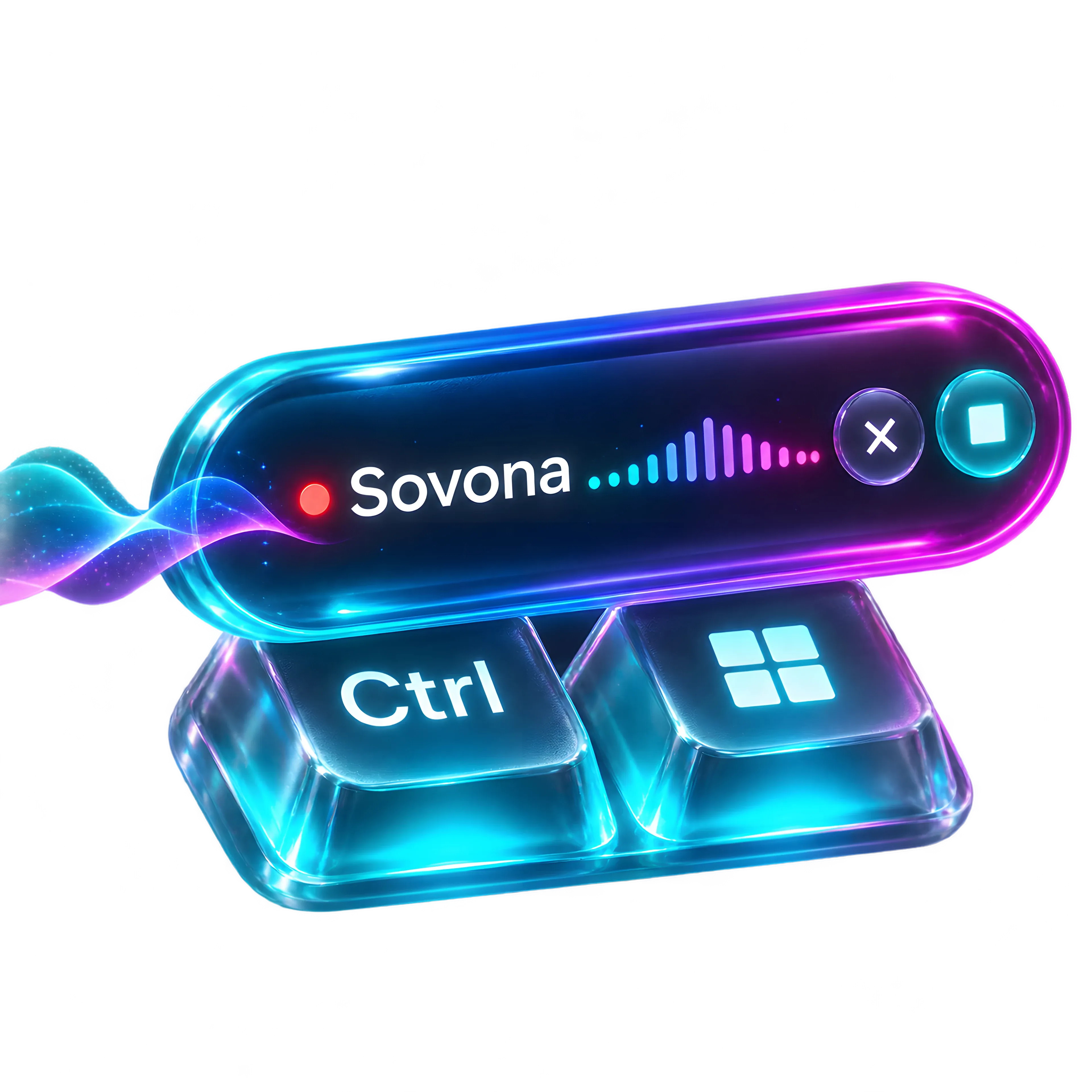
Click into any text box, in any app. Hold Ctrl + Win, speak naturally, then let go. Clean, punctuated text appears right where your cursor is.
Good to know: Every dictation is also copied to your clipboard and saved in History, so you never lose a word.
The voice pill
The pill shows what Sovona is doing. Drag it anywhere, or hide it until you speak.
A small pill sits on screen with a cyan dot. It never steals focus.
A live waveform shows your voice, and your words appear as you speak.
Your text is pasted, and the pill tells you where, like "Pasted into Slack".
Shortcuts
These are the defaults. Change any of them in Settings, then Hotkeys. Enter, Tab and Esc only do this while Sovona is listening, so normal typing is never affected.
Voice commands
Say these while dictating. Sovona acts on them and leaves them out of your text.
Next
Set the tone for each app: formal in email, relaxed in chat, exact in code. Sovona switches for you.
Add names, brands and jargon to your Dictionary so they come out right every time.
Press Alt + N anywhere to save a voice note without opening the app.
Capture your mic and the call audio on your PC and get a summary and action items.
Turn on the "Hey Sovona" wake word in Settings. It stays off until you choose it.
Open Privacy to see what stays on your PC and every connection the app makes.